Everything you need to run commercial screens.
Lumina covers the whole job: designing layouts, managing media, publishing to the right screens, and keeping an eye on the fleet once it’s live.
Lay out the screen, zone by zone.
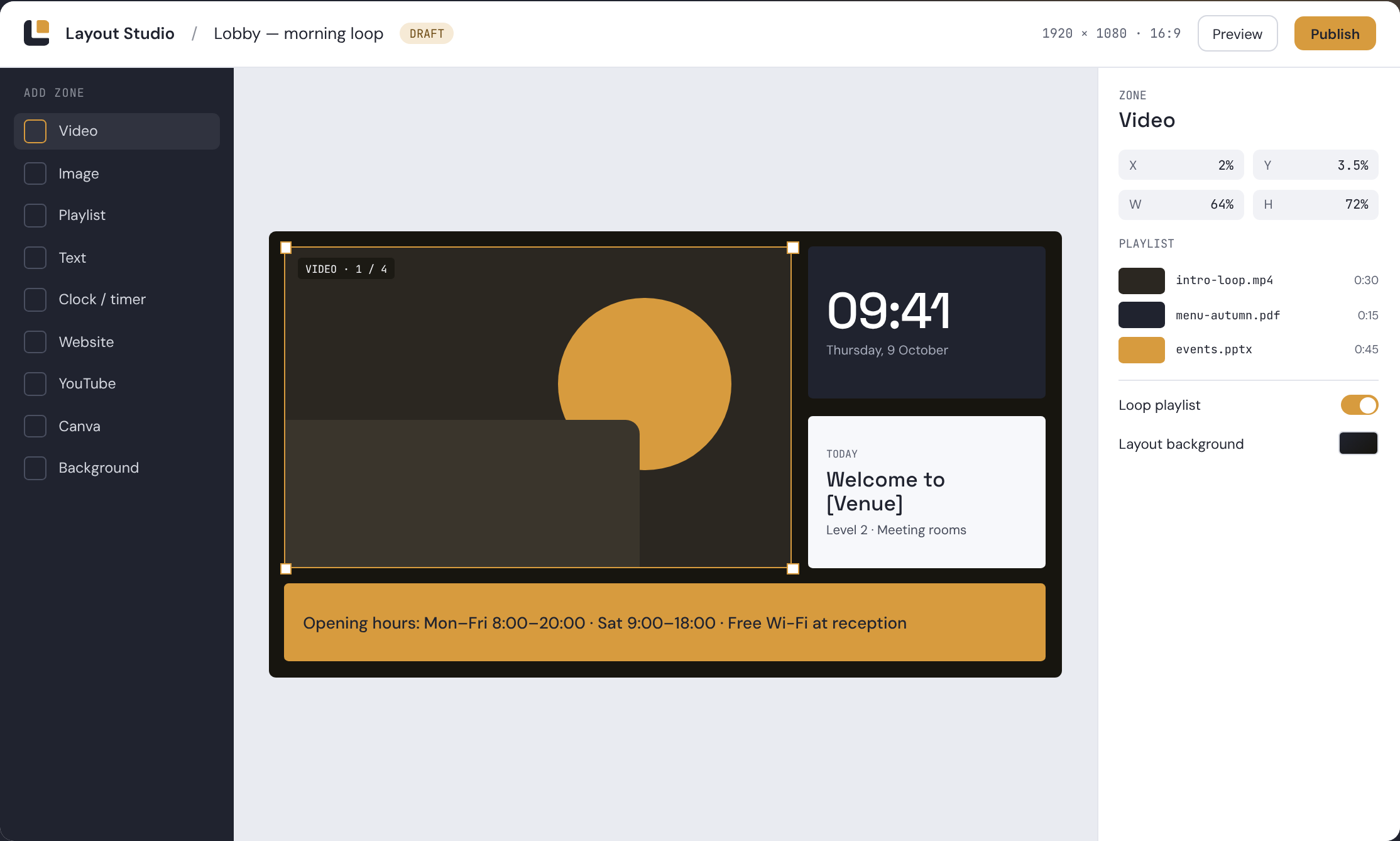
Drag zones onto a canvas the shape of your display, then decide what plays in each one. Resize and position zones precisely, preview the result, and publish when it looks right.
What a zone can hold
Video
Play a single video or a sequence of clips.
Images
Stills and slideshows, fitted to the zone.
Playlists
Mix videos, images and documents in one rotation.
Text
Headlines, notices and opening hours, styled on the canvas.
Clock & timer
The current time, or a countdown to an event.
Websites
Show a live web page inside a zone.
YouTube
Embed a YouTube video by link.
Canva
Embed a Canva design your team already maintains.
Backgrounds
Solid colours or gradients behind your zones.
Bring the files you already have.
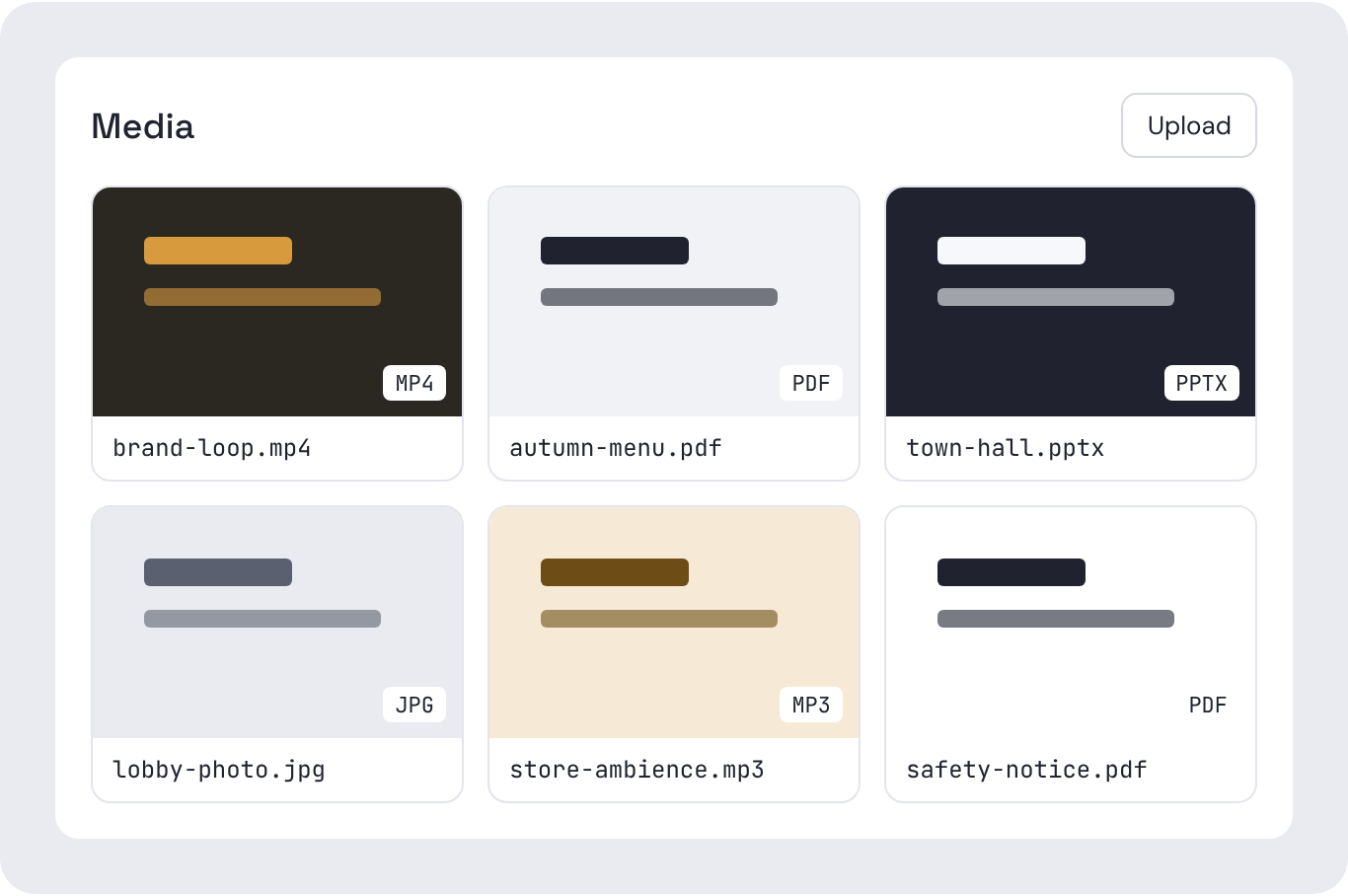
Upload video, images, PDFs, PowerPoint decks and audio into one library. Lumina creates thumbnails automatically, so the right file is easy to find when you build a playlist.
- PDF and PowerPoint support
- Audio files alongside video and images
- Thumbnails generated automatically
- Use any file in any layout or playlist
Organise screens the way your estate is organised.
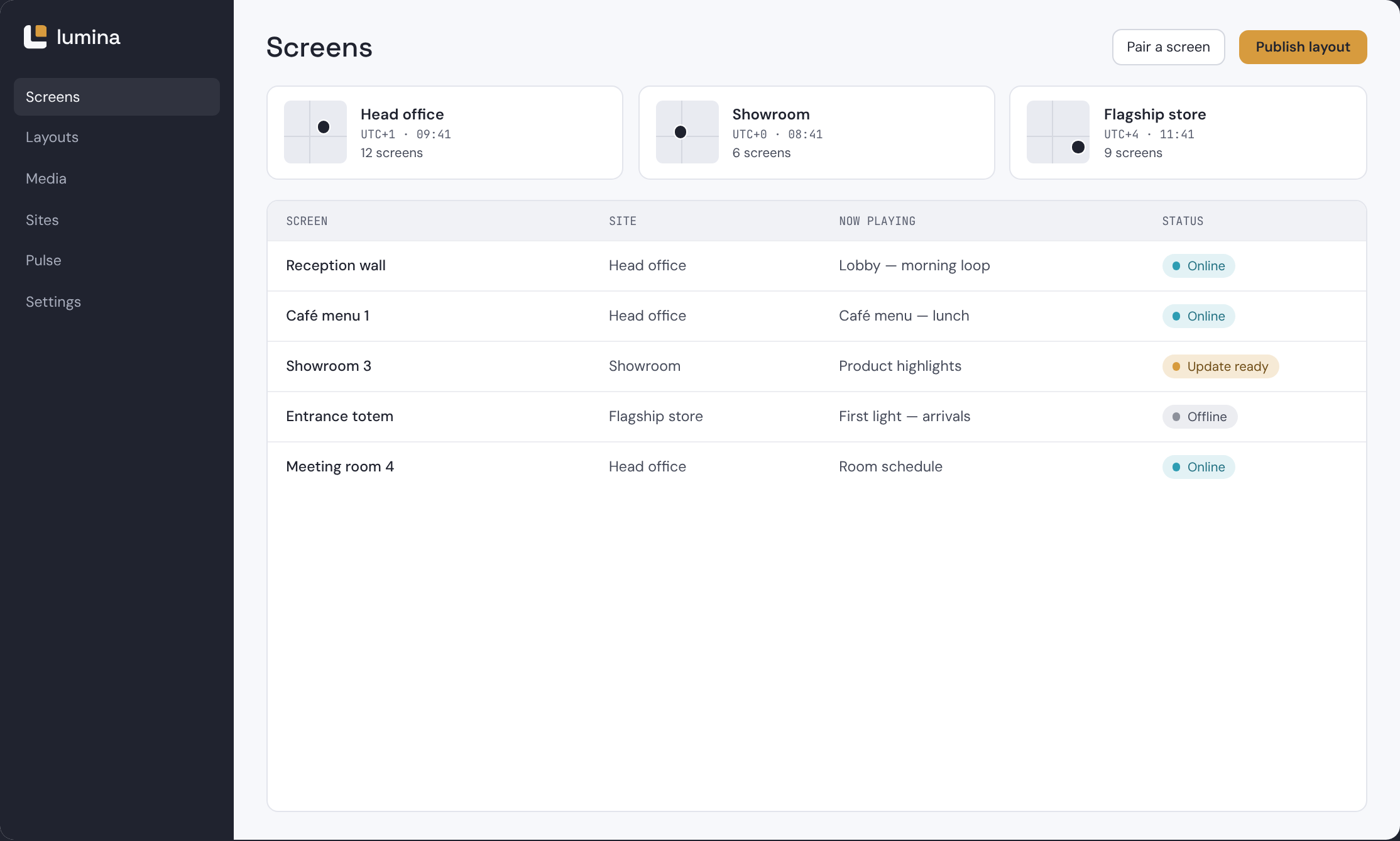
Screens belong to sites. Each site has a location on the map and its own time zone, so content lands at the right local time wherever the screen is.
Sites, maps and time zones
Group screens by location. Each site carries its address on the map and the time zone its screens run on.
Pair with a short code
A new player shows a code on screen. Enter it in Lumina, choose the site, and the screen is part of your fleet.
Publish to the right screens
Send a layout to a single screen, a whole site, or every site at once. Players download it and switch over.
Live fleet health, without logging into each screen.
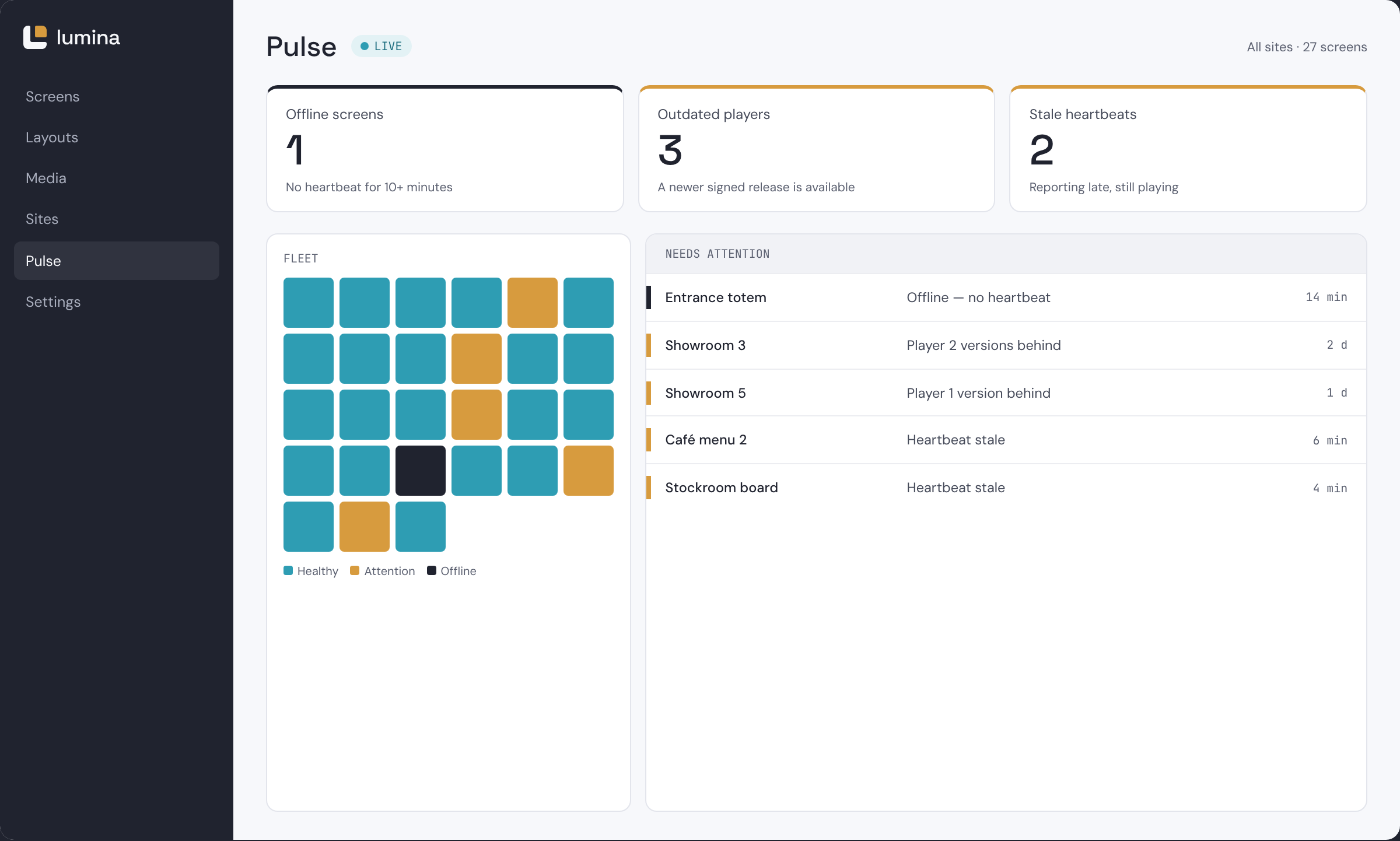
Every player sends a regular heartbeat. Pulse turns those heartbeats into a short list of what needs your attention, so problems are found from your desk instead of by a visitor.
Offline screens
Screens that have stopped checking in, with how long they’ve been quiet.
Outdated players
Players running an older version than the current release.
Stale heartbeats
Players reporting late — often the first sign of a network or power problem.
Diagnostics
Per-screen details to help you or your integrator decide what to do next.
Android today. Linux, webOS and Tizen coming.
Android player
Install the player on an Android-based display or media player, pair it with a code, and it’s ready for content.
- Pairing by code
- Secure device credentials
- Signed over-the-air updates with staged rollouts
- Keeps playing from cache when the network drops
- Coming
Linux
For Linux-based media players and small PCs.
- Coming
webOS
Native player for LG commercial displays.
- Coming
Tizen
Native player for Samsung commercial displays.
- Coming
Multi-output
Video walls and multi-screen outputs.
Careful with access. Careful with change.
How a screen joins
The player shows a pairing code
Install the Lumina player and open it. A short code appears on the screen.
You enter the code in Lumina
Choose the site the screen belongs to. The player is issued its own device credentials.
The screen starts playing
The player downloads its layout and media, stores them locally and begins playback.
How player updates roll out
- RELEASESigned build
- STAGE 1A small group
- STAGE 2More screens
- COMPLETEWhole fleet
Each player release is signed before it leaves us. Updates go out over the air in stages, so a release reaches a small group of screens first and the rest of the fleet only after it has proven itself. Pulse shows which players are still on an older version.
If the network drops during the day, players keep playing from their local cache and pick up changes when they reconnect.